Changelog

New updates and improvements

August 13, 2026

Find the materials in your photo

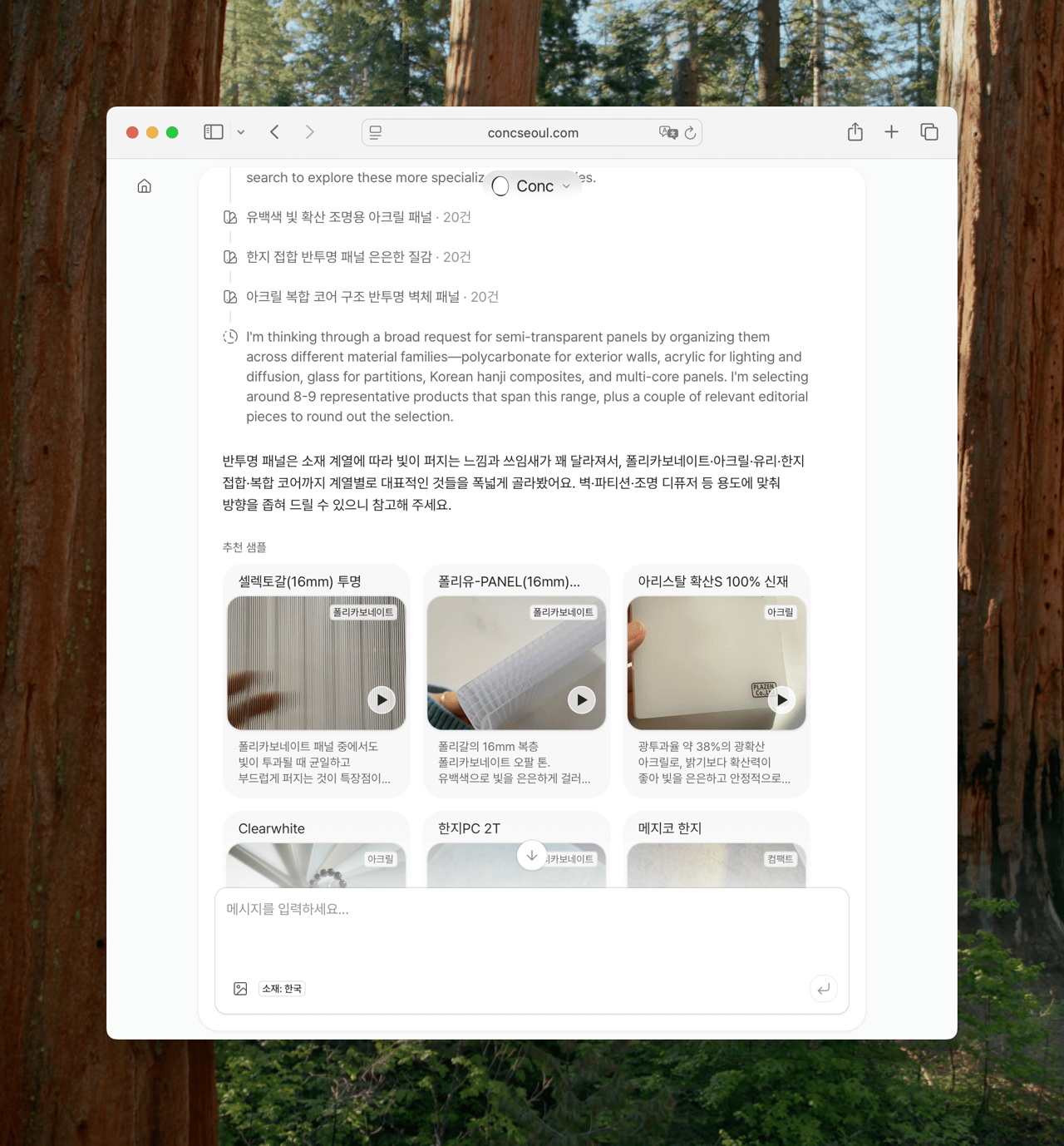
Drop in a reference photo and Conc reads the space surface by surface — floor, wall, ceiling — then finds a material for each one, with the reasoning attached.

You know the moment: you're looking at a reference shot and stop on "what is that floor?" Now you can drop that photo into a conversation.

  • Read surface by surface: A single photo gets read as floor, wall, ceiling, furniture, and openings.

  • Get on the same page first: Before the search starts, you'll see how the photo was read, one line per surface. Carry on as-is, or put it right in a sentence — "the window on the right is a translucent panel" — and it looks again with your name for it.

  • Reasons come with the results: Every surface comes back with materials that suit it and why each one fits, picked so the tones of wall, floor, and furniture don't fight each other.

  • You don't need the right word: Some textures are hard to name. Conc searches by what the photo shows as well, so materials with the same character turn up even when the words miss.

  • See it in a finished space: A name and a swatch don't always tell you enough. When Conc has a space that actually used the material, it comes back alongside the candidate.

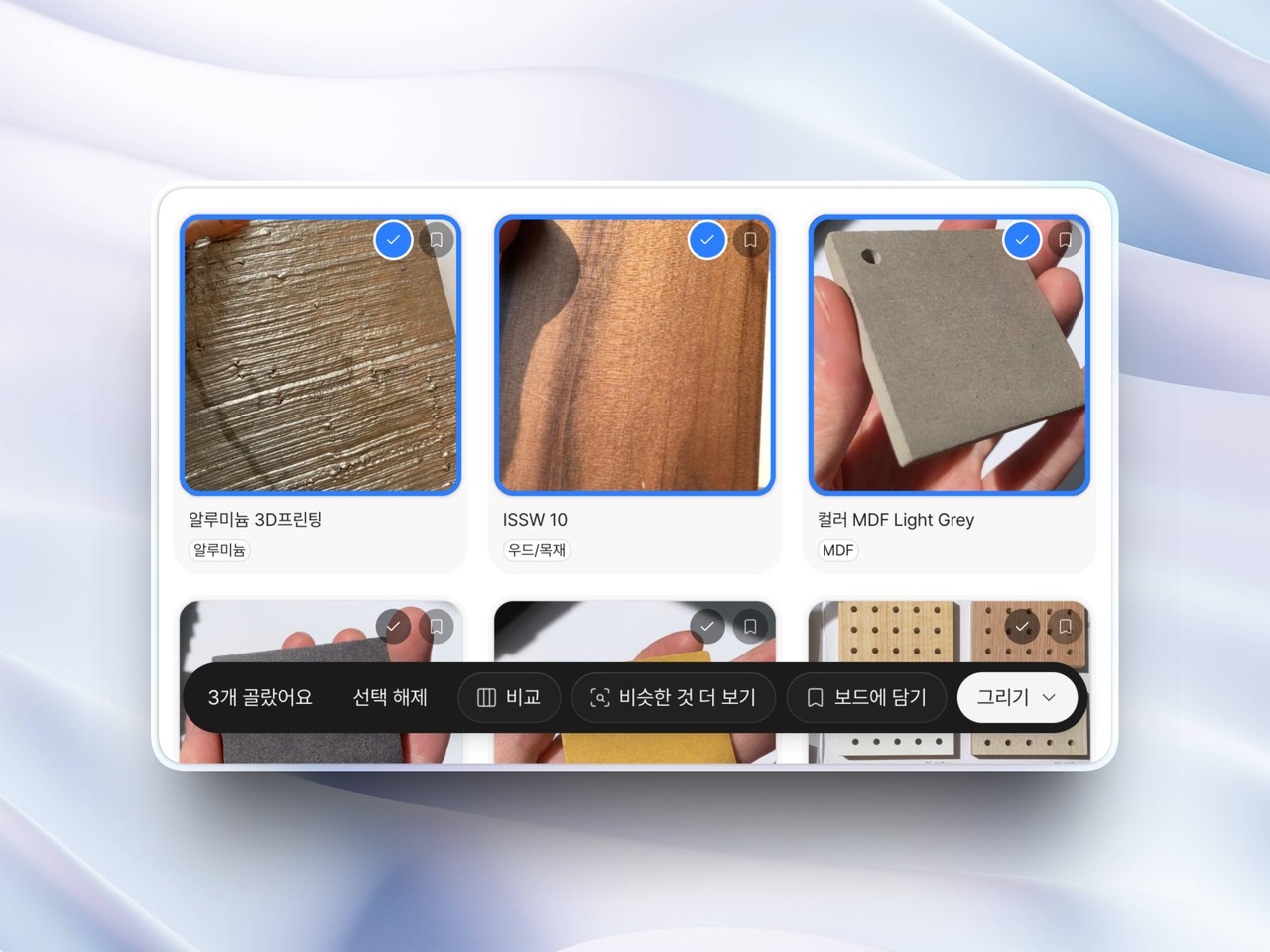
  • Carry it over to a board: Surfaces become the board's sections, and the reasoning stays as a note on each material. Even for replies without surfaces — a material close-up, say — everything found can go to a board in one go.

When nothing similar turns up for a surface, it says so, and so does a surface the photo was too unclear to read with confidence. Results stay in the conversation, so they're waiting when you come back. Start with whatever reference is on your desk right now.

August 7, 2026

Make material decisions on your boards

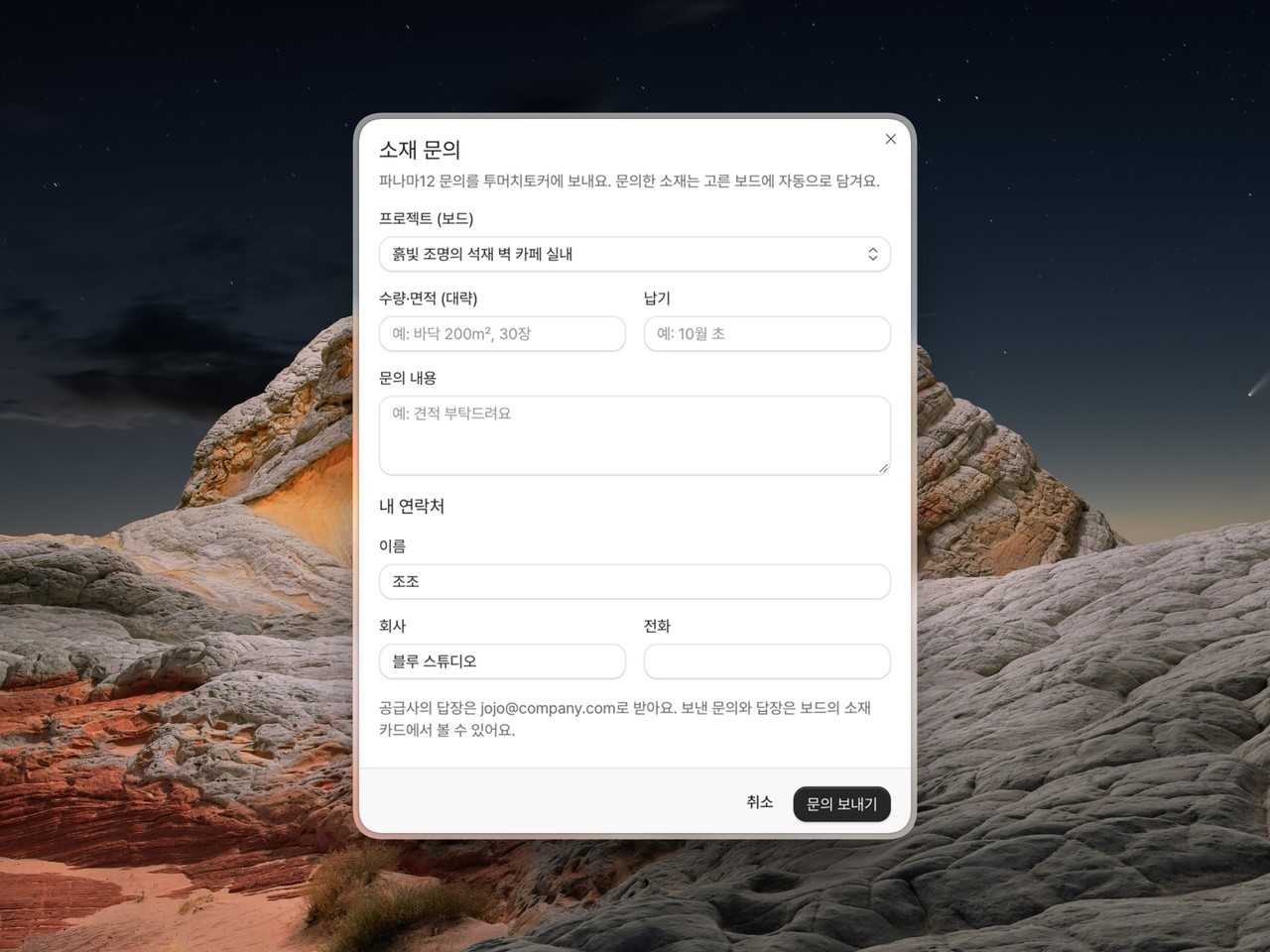
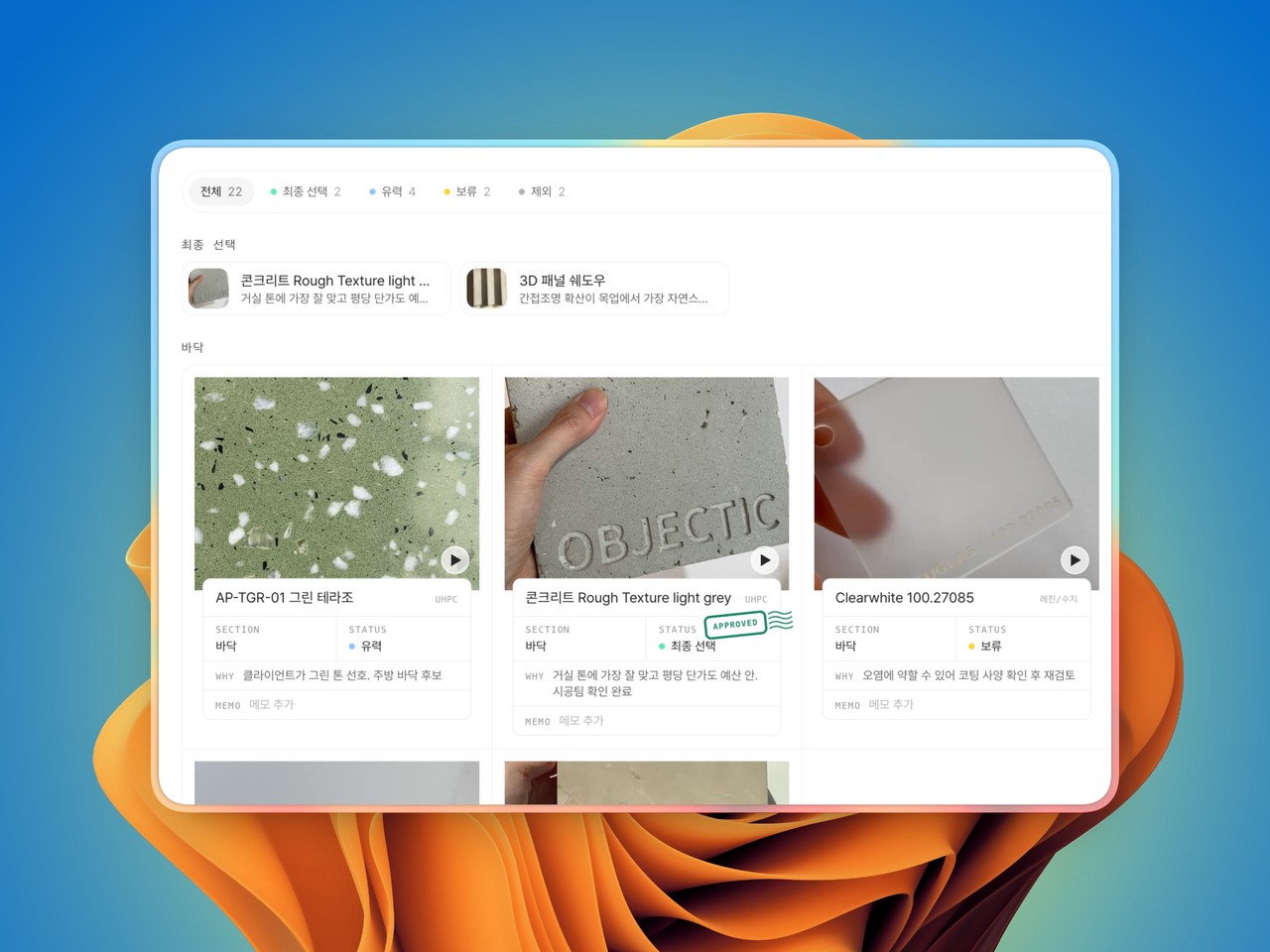
Give each material on a board a status: shortlist, on hold, selected, or excluded. Organize them into sections like wall and floor. The narrowing-down now lives on the board.

Boards used to be where you collect materials. Anything beyond that took workarounds: judgment calls tucked into memos, rejected materials deleted outright. That work is now built into the board. Narrow candidates down to a final pick, right where you collected them.

Give each material a status: shortlist, on hold, selected, or excluded. Leave a short reason while you're at it, so calls like "fits the budget" or "lead time too long" stay visible right on the card.

The board follows along. Counts per status sit at a glance, and when candidates pile up, try viewing just the shortlist. Selected materials get a stamp on their card and gather in a summary at the top. Instead of deleting a rejected material, mark it excluded: it folds away below the board, and unfolds right back where it was.

The same material can be judged differently per project. What makes the shortlist on one project may not on another. So statuses stay separate on every board.

Sections are here too. Try splitting a board into wall, floor, and lighting, or any name you like. Names are free-form, so "references" or "ground-floor hall" work just as well. Materials move between sections as you drag them, and grabbing a section title reorders the sections themselves.

Every status change is recorded automatically: who, when, which material, and why. Your team's decision trail builds up as part of the project. Start with your next decision. Make it on the board.

August 4, 2026

Simpler filters in Explore

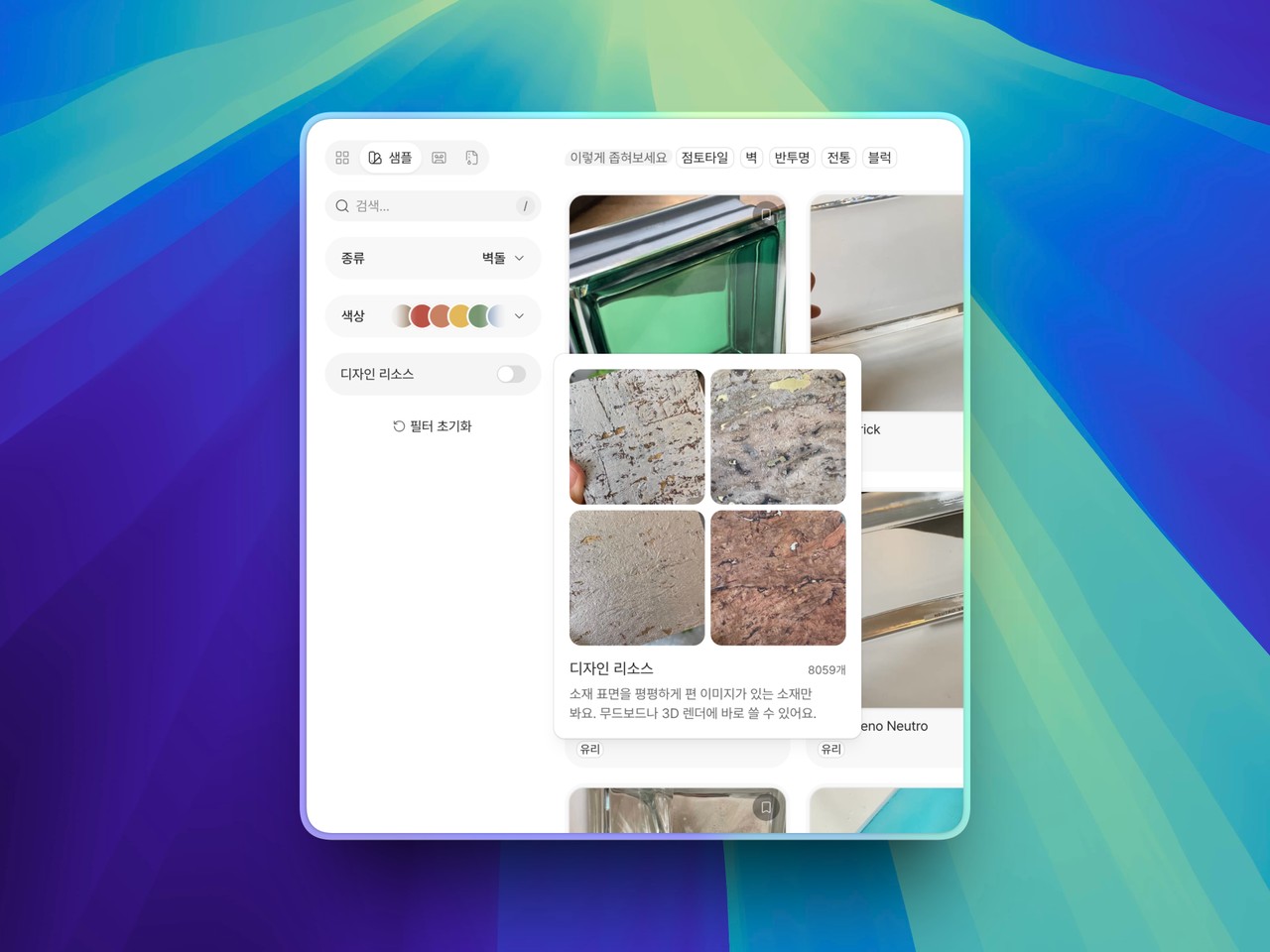
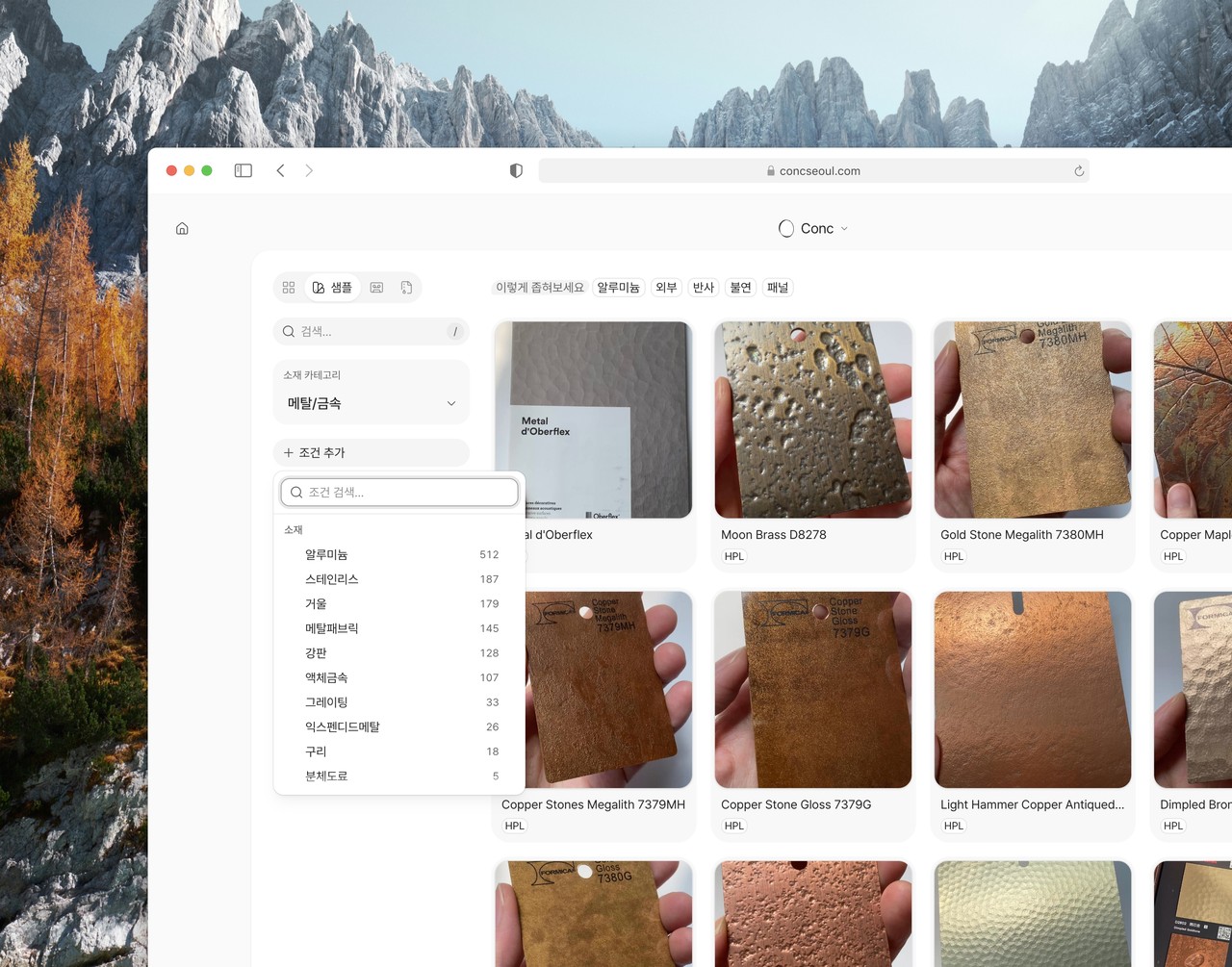
Narrowing materials in Explore meant opening one lookalike box after another. Now you pick a category and add only the conditions you need.

Narrowing materials in Explore meant opening one lookalike box after another. Now you don't have to.

Start with a material category. Going into a broad family — wood, tile, textile — was already the move people made most often when filtering, so it's the first step on screen now.

Everything else lives behind "add condition". Use, finish, property, form, and brand each had their own box; now they share one you can search. Knowing the name is enough, even when you don't know which family it belongs to. What you pick stays on screen as a tag. You can see what's on at a glance and drop them one at a time.

When there's a lot to look through, "try narrowing by" appears above the results. It only offers conditions that would actually cut the list down.

A handful of smaller things you meet while filtering got tidied up along the way.

July 20, 2026

The all-new Conc

A new version of Conc is here. We rebuilt the interface and everything underneath it, and it came out simpler and more direct.

A new version of Conc is here. We rebuilt the interface and everything underneath it to keep up with how the work is changing, and it came out simpler and more direct.

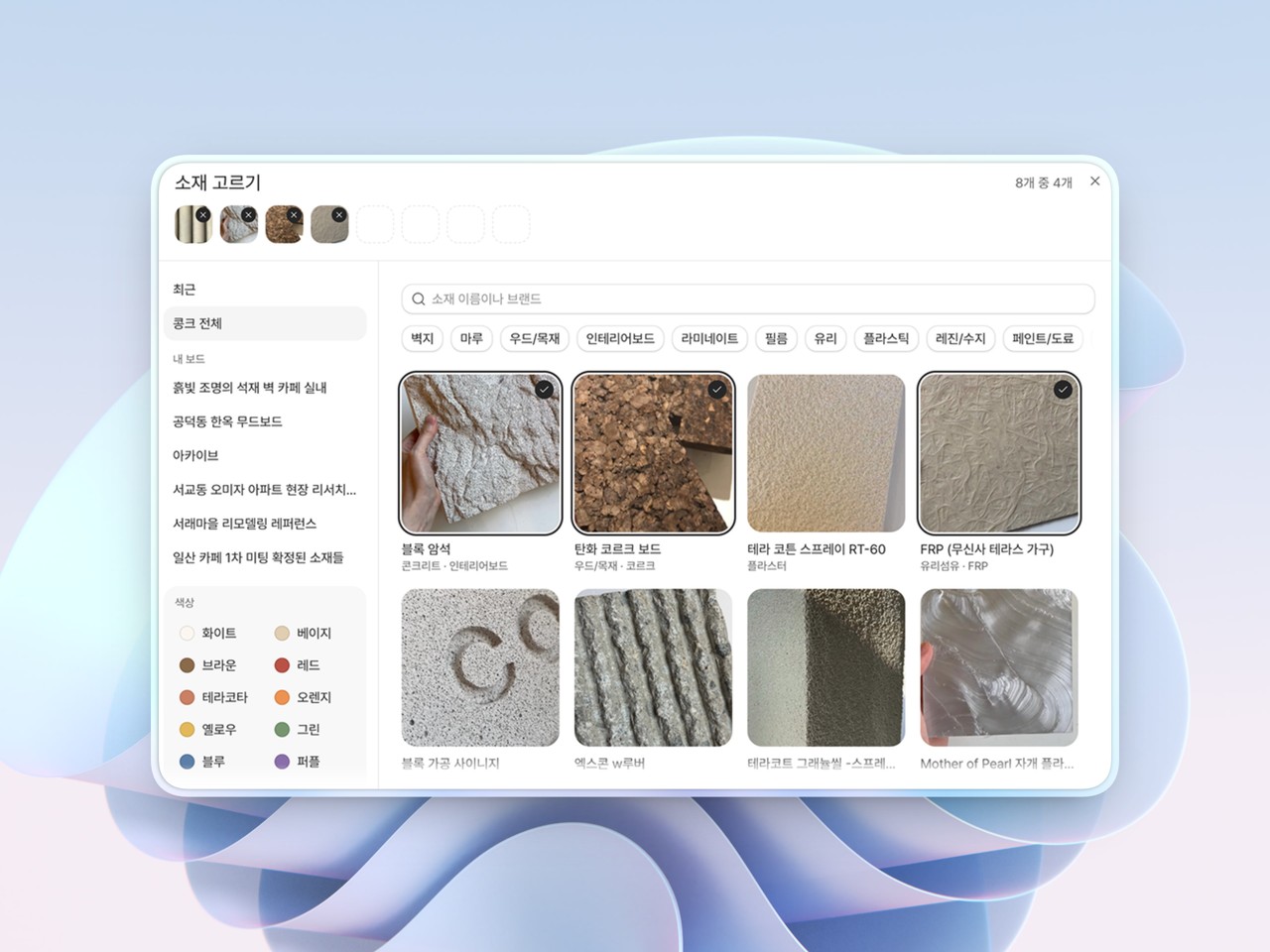
  • Search by conversation: Come start a conversation. Describe a project in a line or drop in a reference image, and we'll show you materials that fit, along with why they fit — matched by mood and texture rather than spec sheets. If something isn't right, keep asking and narrow it down; the ones you like go straight to a board.

  • Explore: We remade search and filters and redesigned the pages for materials and content. Plenty of smaller things you meet along the way got attention too. What you're looking for should turn up faster.

  • Brought into boards: The places you kept materials had grown into a few separate things; now they all come together in boards. What notes, recently viewed, and field trips used to do is now handled by boards, and everything you saved in your mixtapes carried over into boards as well. What you kept in those older places is still yours — open Settings, find your earlier data, and download a copy.

Honestly, there are still rough edges. We'll keep smoothing them out from here, so if you run into something odd, tell us! Email, Instagram, or the chat inside the app — whichever is easiest.