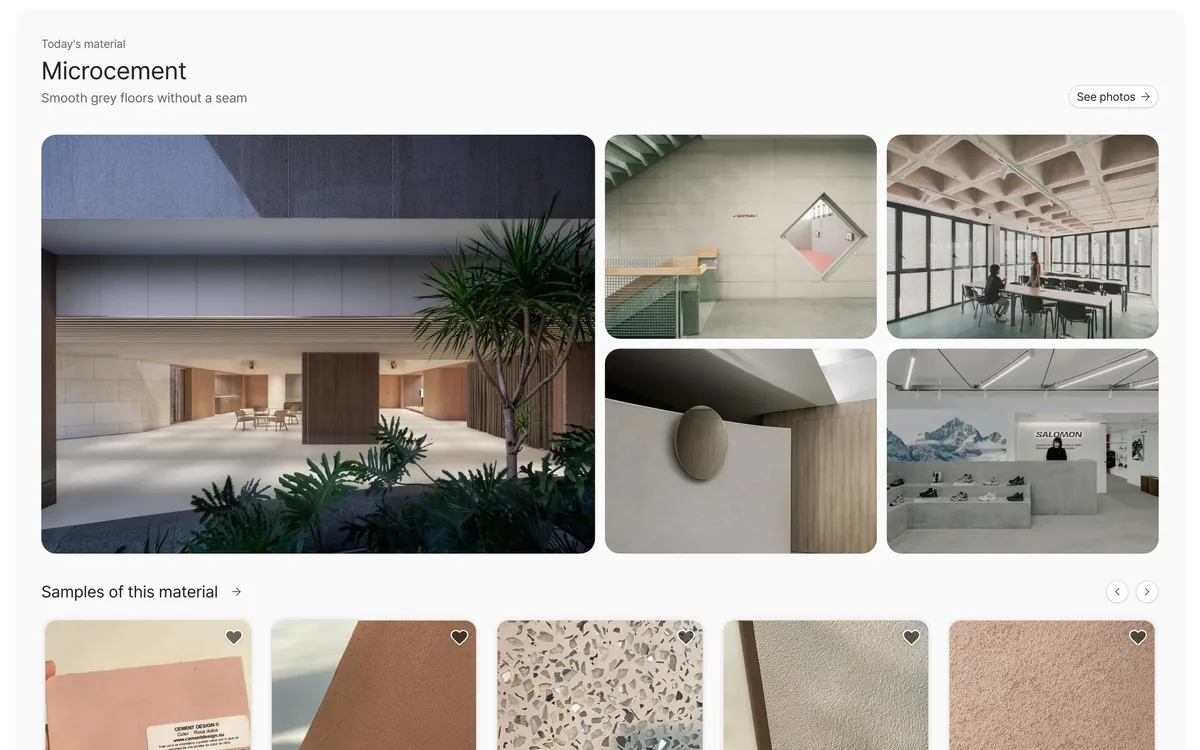
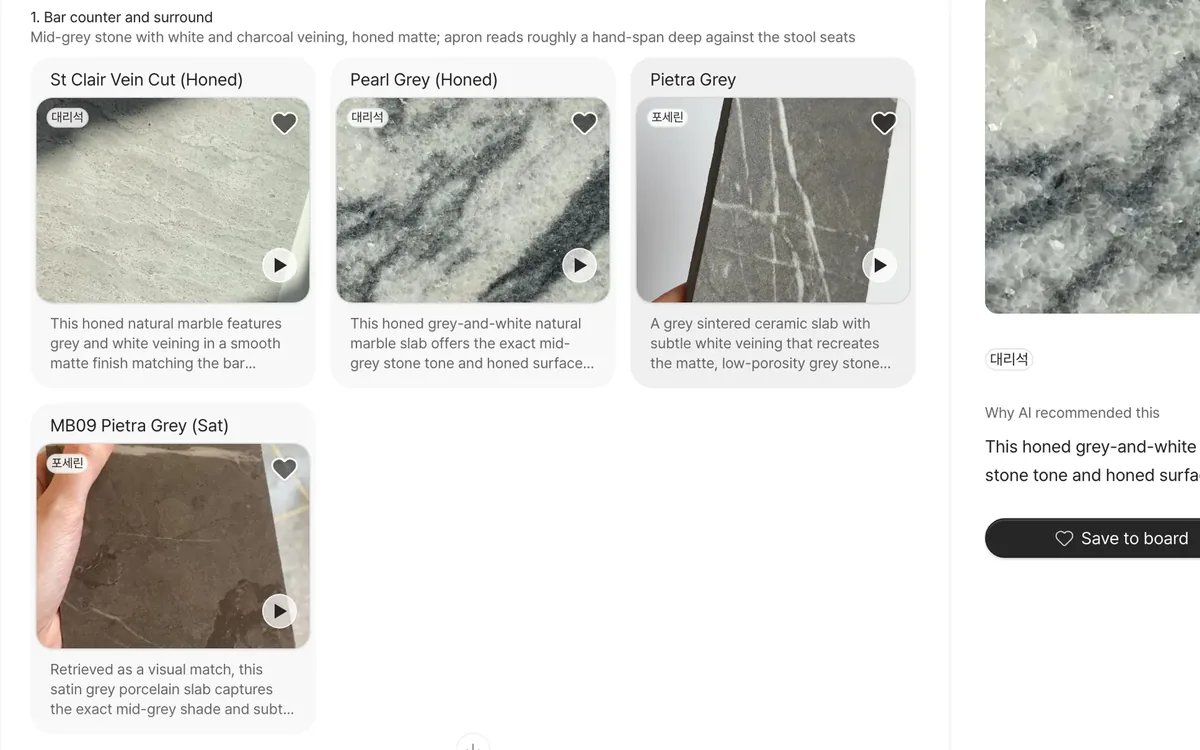
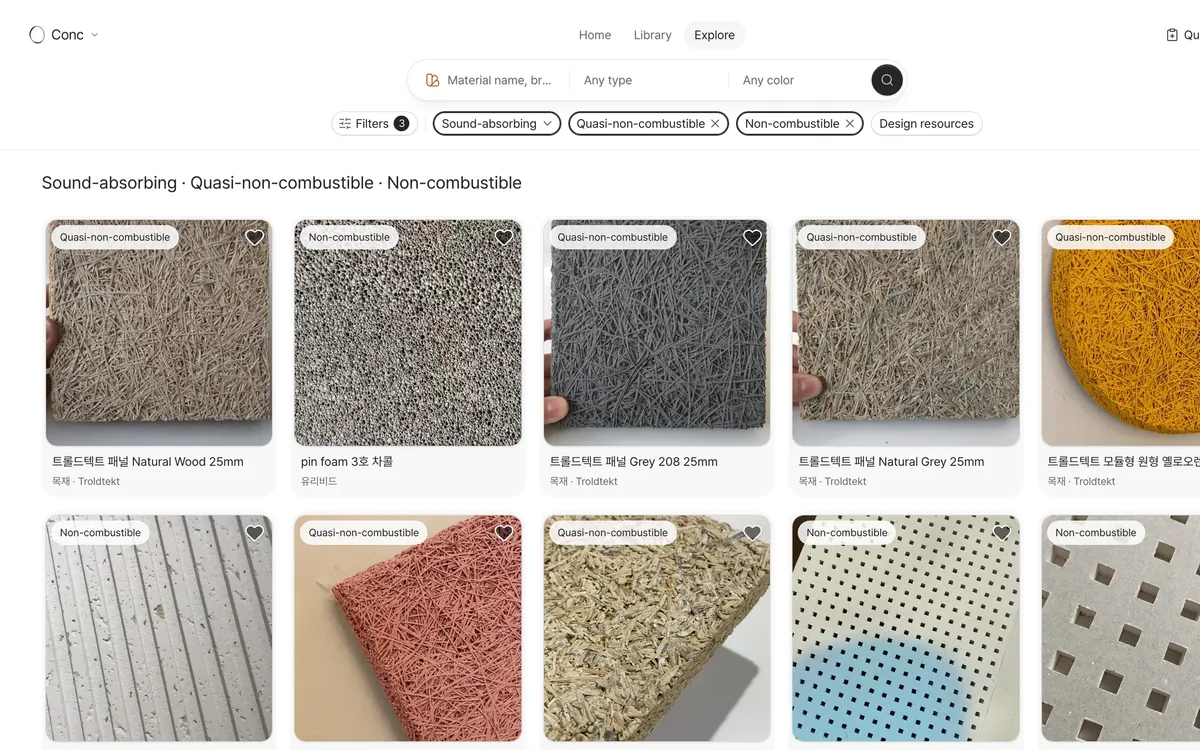
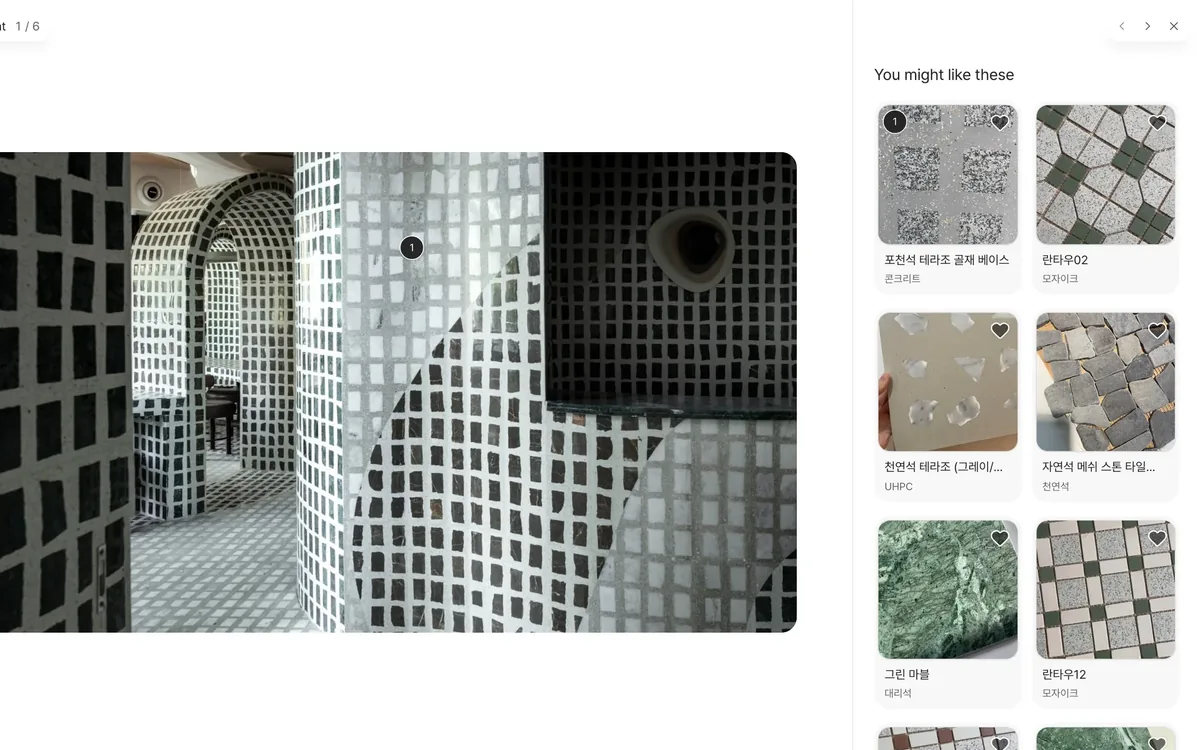
Turn your picks into pictures you can show
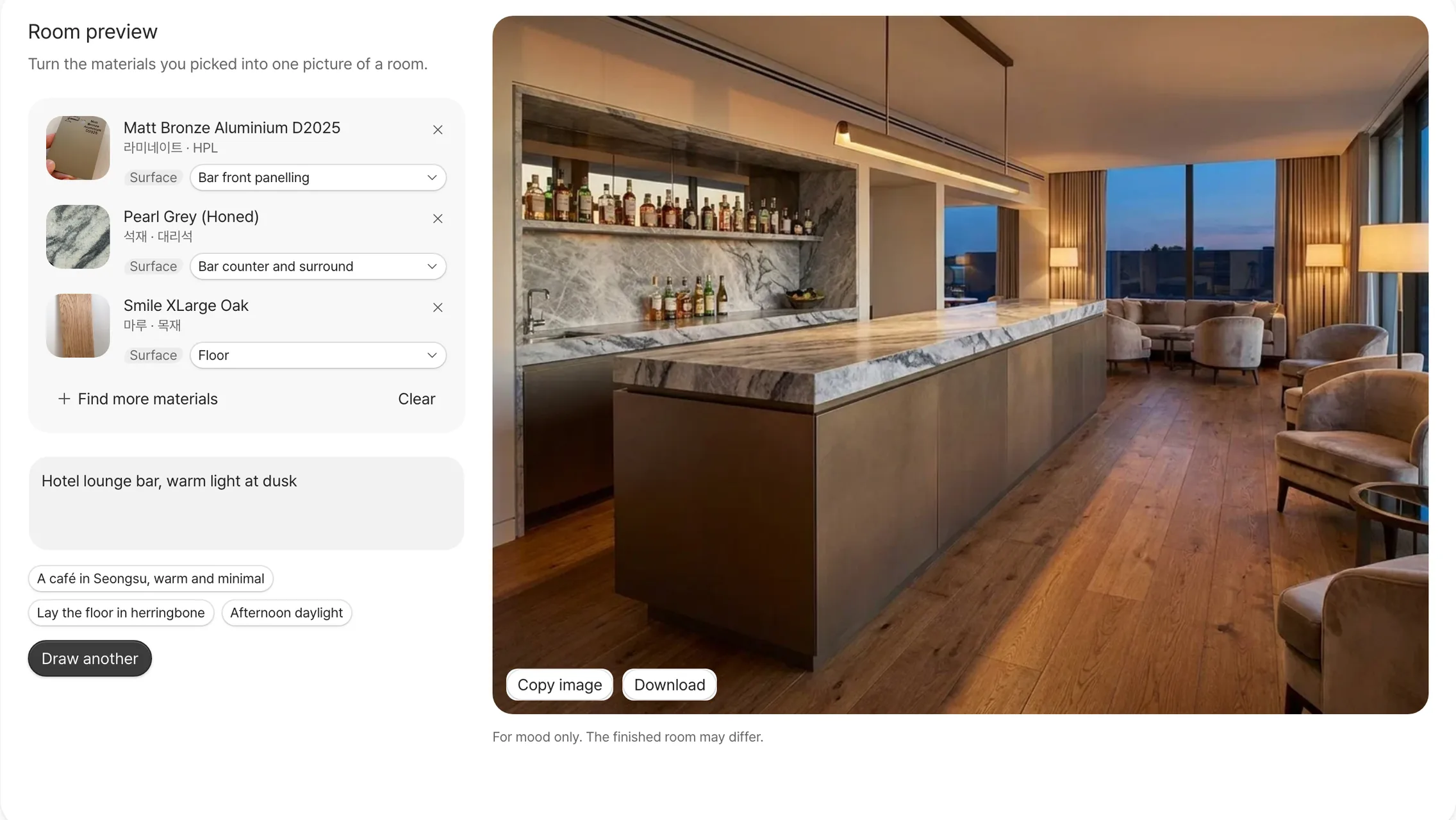
Give each material a surface and draw the room they make together. Draw again until it feels right, and weigh the versions against each other.
Draw straight from the cards you pick
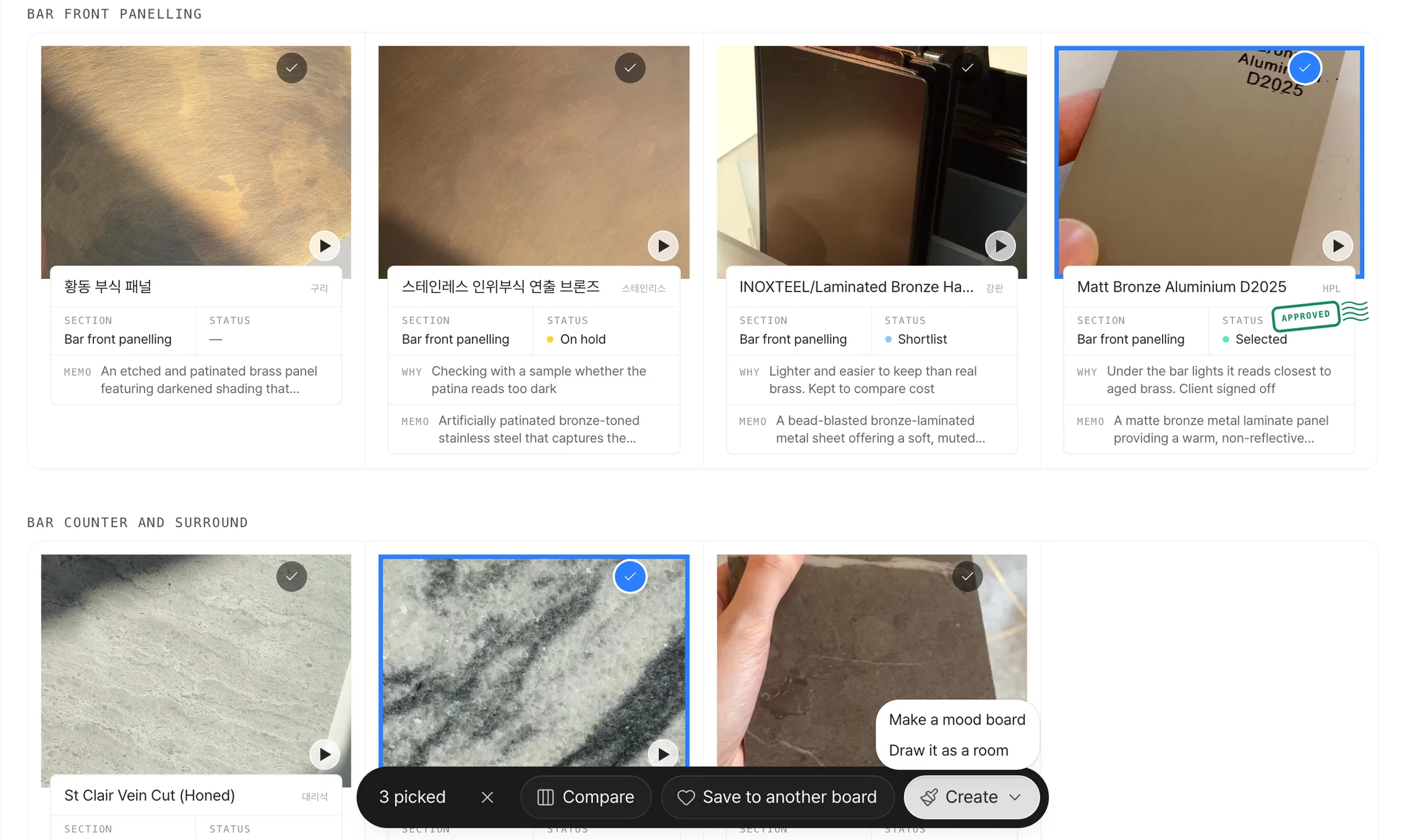
On a board, pick cards with 'Pick to draw or compare' and press 'Create': the mood board or room preview opens with those materials in it. Pick just one and 'Apply to a photo' is on the menu too.
Get the mood across in one picture
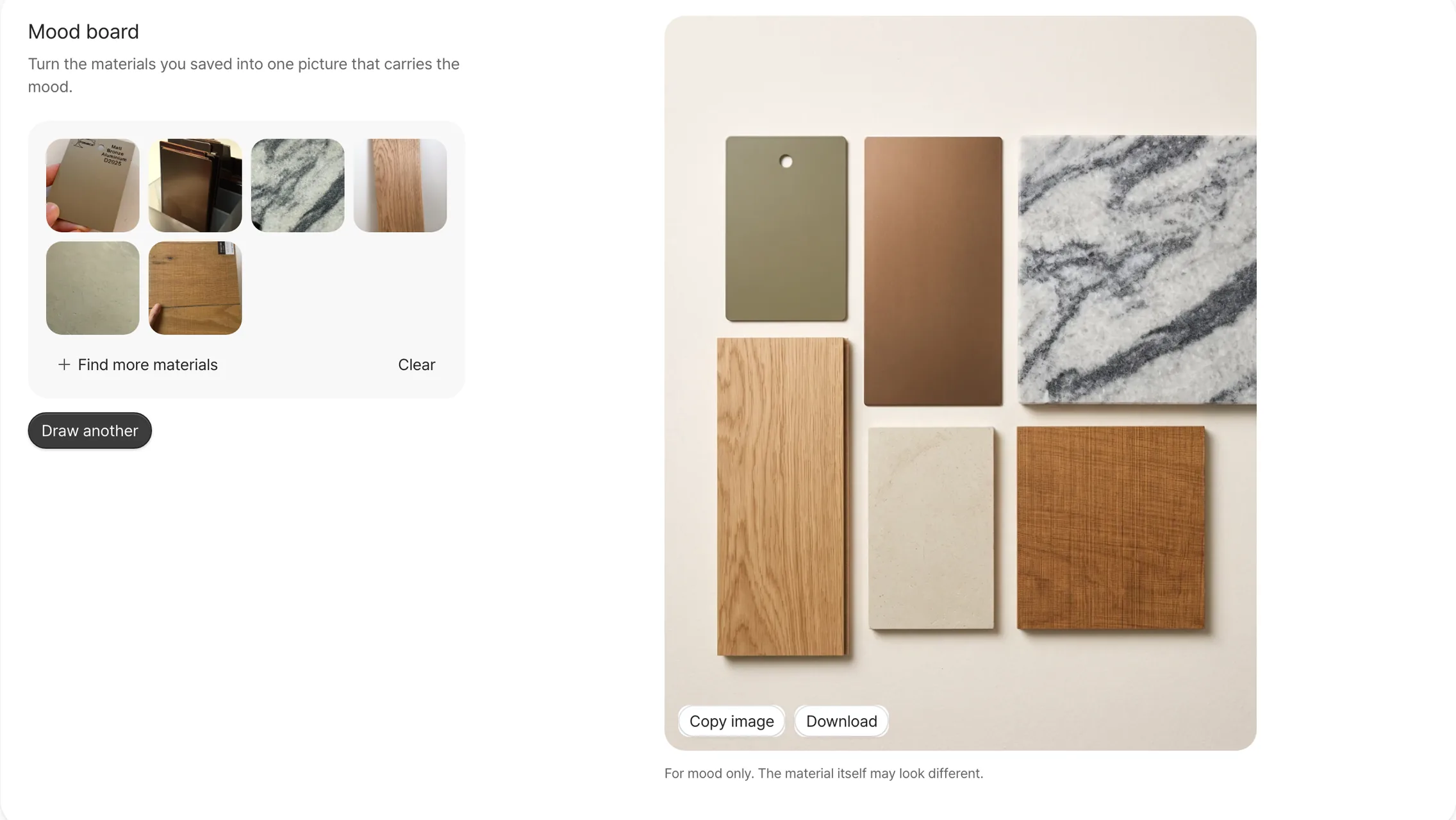
Pick four to eight materials and get one picture of the samples laid out and shot from above. Copy the image or download it to use right away.
Try a material on a photo of the site
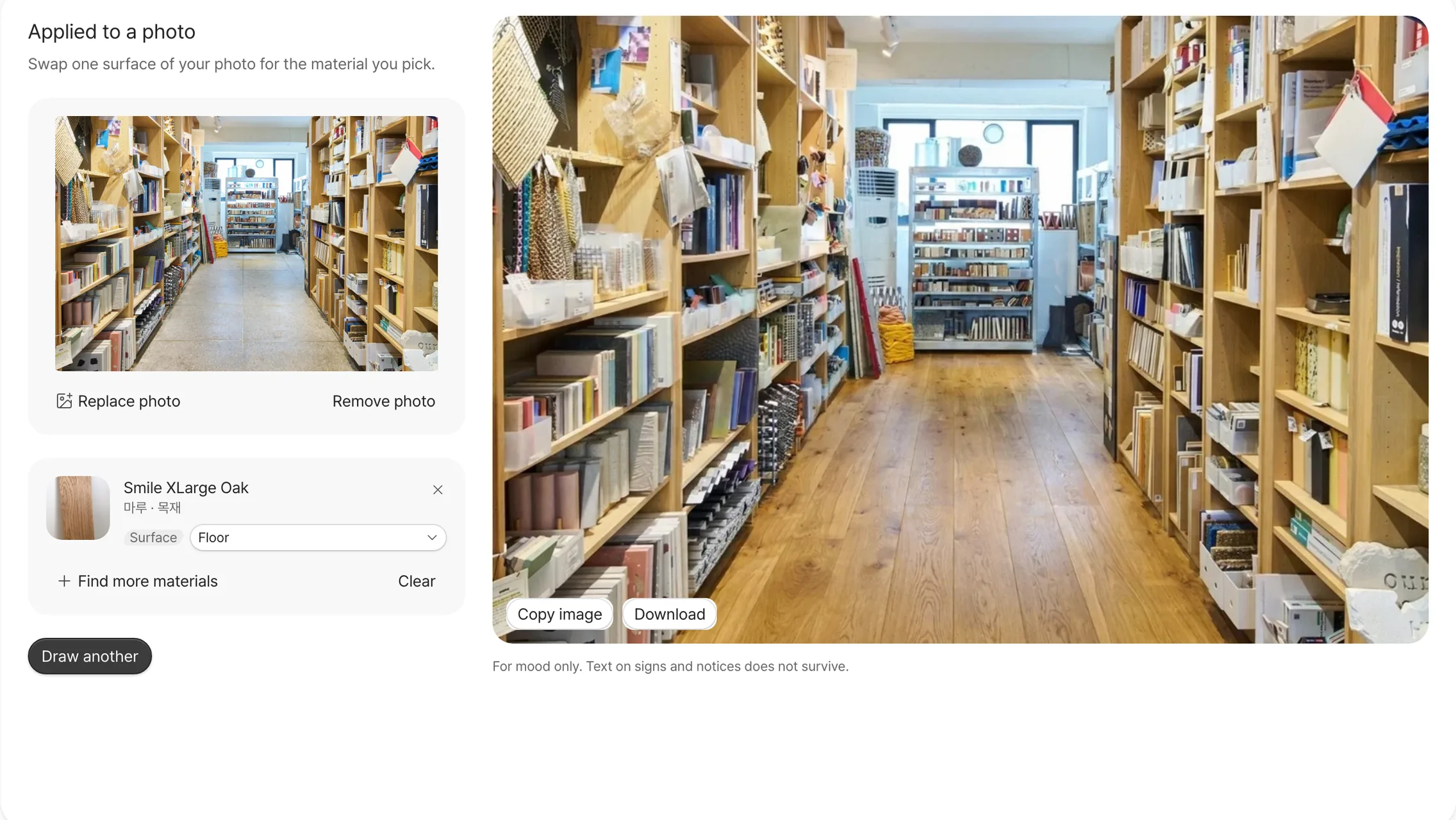
Upload a photo of the space, pick one material and the surface to change, and only that surface changes. The photo here is the aisle of Conc's sample room, its grey floor swapped for the board's oak.
Every picture keeps its materials
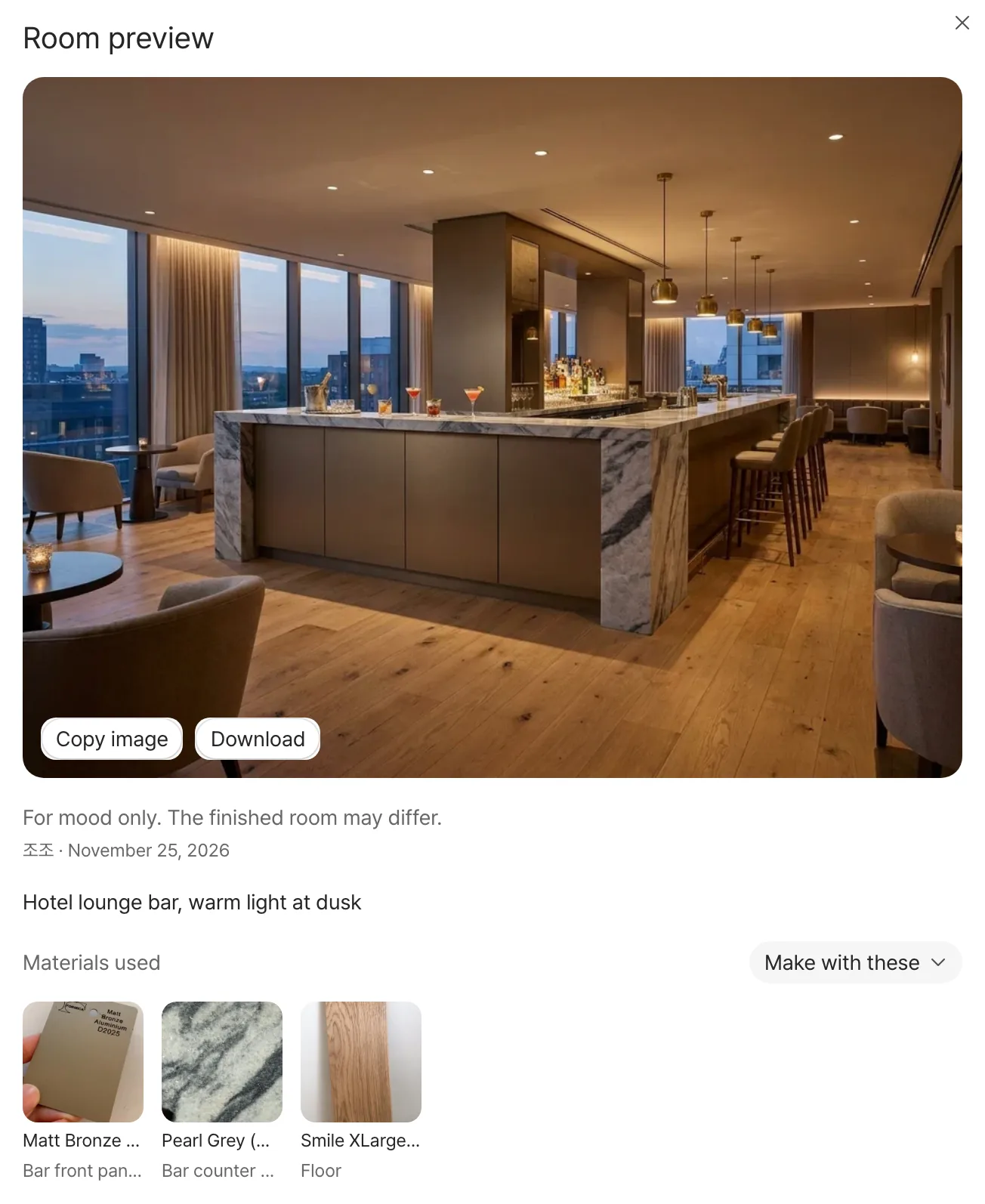
Whatever you make lands in Artifacts in your library. Open one to see the materials it used, the surface each went on and the note you wrote, and everyone in your workspace sees them too.
- Draw another
- Draw again with the same materials and the versions stack up under the picture. Press an earlier one to see it large again.
- Add a note
- In a room preview, say in a line what kind of place and mood it is, or start from one of the suggestions.
- Find more materials
- Add more from what you saved recently, your boards or all of Conc's materials, without leaving the tool.
- Make with these
- Open a picture in Artifacts and start another tool with the same materials.
Making pictures with the mood board, room preview and apply to a photo is Pro. Free members can still open the tool screens.